Friday, 28 July 2017

Three Day GameJam: Day 3

The game jam is over (just about). Carmen is still struggling to get the last bits of the girls game ready.  There were a lot of last minute changes: mainly art, and deciding to put the menu in and so on. So they are running late.
Mid morning Daniel hit the max 100 event limit on Construct 2-Free Edition, but it turned out he had been copy-pasting a lot of events everywhere, so when he went back and tidied up his code it was only 80 events.
Myself as the Game Jam veteran (I think its about 5 jams), had art and sound finished by lunchtime, then finished off the with menu and final game balancing. Which I must say actually went very well.

Results, Noon

Lots of art changes in the platformer which was undergoing a total change in direction as the girls argued on a new name

The battle animals gained a name 'Save The Forest' and became fully 2 player.

Space Battler actually has proper graphics and now looks like a real game (if a little hectic)

Results, End of Day

The girls decided to rename their game Shadows of 'Deceipt' and Carmen wrote a massive storyline for it (because she's Carmen)

Save the Forest added a sound and music and a title screen

Space Battler now has a menu with difficulty levels and the game starts slow but gets hard quickly, thanks to the Danger Rating (tm) system.

Conclusion

It has a fun 3 days. Will post feedback from the kids later.
The games are up on Itch.io (which turned out to be really easy to do) and you can play them.
Next time, it might be only 2 days, and we might consider inviting some friends, but that's probably not for a while yet.

Three Day GameJam: Day 2

Day 2

All told, day 2 was just dull. I lot of time was spent on getting the art ready, but not much progress was done otherwise. Daniel and I spend a lot of time working on our tech issues, which seem to take most of the day.
We also forgot the midday screen captures, so there is only the end of day results.

Results, end of day

Lost Treasures 2 now has a good chunk of art, and the worlds largest score.

Battle Animals now has proper images and a bit of animation

Space Battler still has no real graphics (on purpose), but now has 5 different ship types

All that remains is to wait for Day 3...

Wednesday, 26 July 2017

Three Day GameJam: Day 1

Its summer holidays, what can I do to keep the kids busy?

This time, I'm trying something new, a Game Jam.

The basic rules are: Build a game with Construct 2 working 9-5 Wednesday, Thursday, Friday.

Day One is now complete, here is the progress so far. I deliberately kept the kids focused on gameplay not wasting time working on artwork. So they look rubbish, but you can see the gameplay.

There are 3 games being worked on:

  • Margaret is working on Lost Treasures 2 (the original was build 5 years ago). Its a simple platformer which allows her to work quickly.
  • Daniel is working on a game like battlecats. He spent most of the day getting basic battle mechanics to work
  • I am working on a space themed lane war game. I'm discovering a lot of flexibility in construct-2 as I'm trying to build something more complex than ever before.

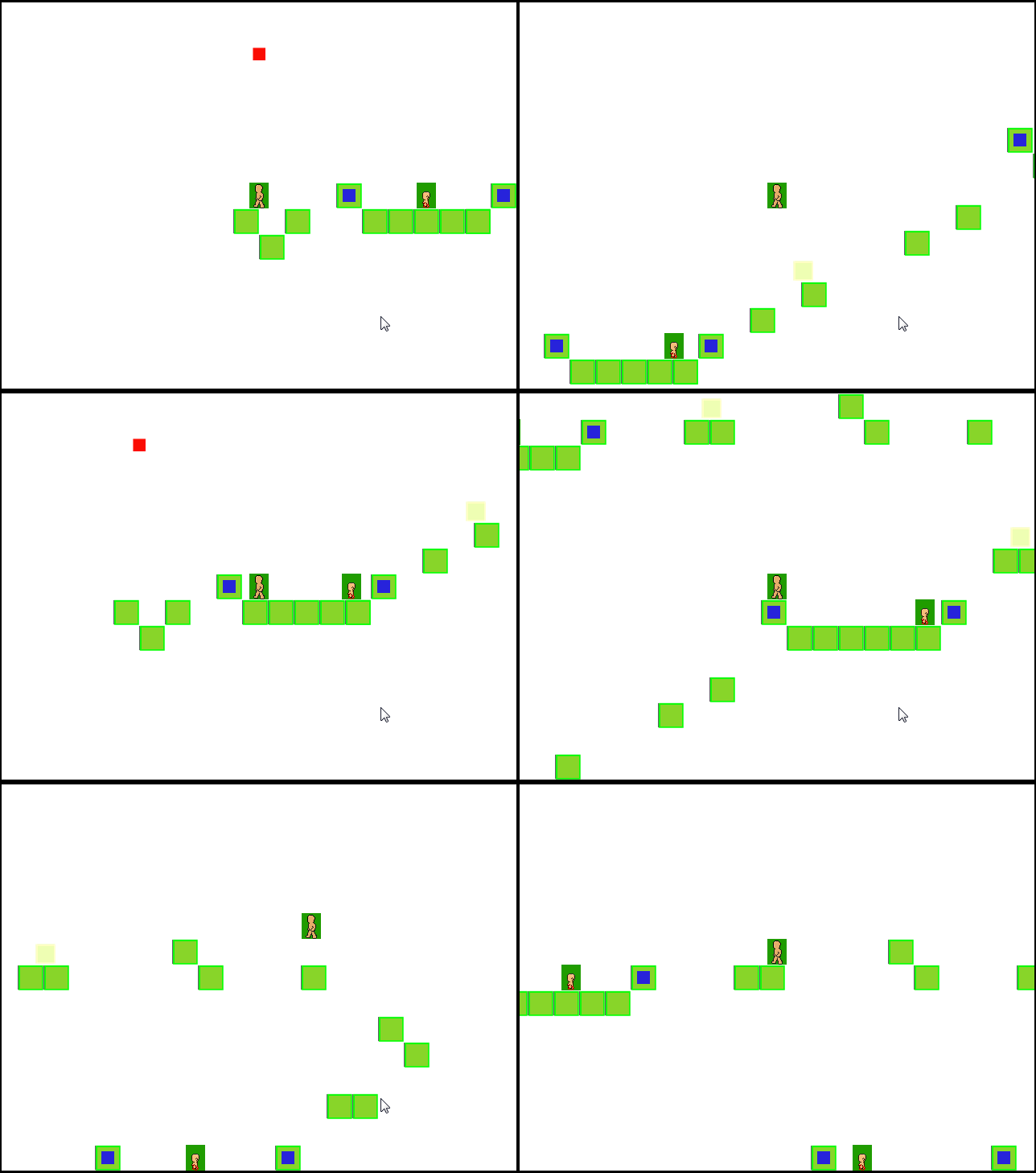
Results, Midday

Lost Treasures 2, platformer with spikes and re-spawns

Battle Animals, battle with knockback

Space battler, just a ship flying and shooting at targets when the get within range.

Results, End of Day

By end of day 1 most groups have the core mechanics working:

Lost Treasures 2: Pickups, Enemies and lots of levels (not shown)

Daniels game: auto spawn of enemies, ghosts on death, base health and money. A lot done.

Space Battler: Both sides spawn and shoot. Health bars for both teams, and an ugly yellow explosion when ships collide.


So Day 1 is over, good work done by all, lets see what happens on Day 2


Saturday, 4 March 2017

MakerClub reworking a buzzwire to work with a MicroBit

Its been a year and a half since my last post, wow!

I could give you an update on joining the game industry as a professional developer (yah!) and the other stuff I have been up to.

But for now, a side topic: Maker Club

I have been helping out at the Eagle Labs Maker Club in central Brighton on a Saturday morning.
Last week we finished a buzzer game project, but the project uses a MakerClub specific micro-controller (Hornet Board).

When Daniel brought home his game (a few months back), we figured out how to get it working with the BBC MicroBit which we had lying around.

So here is a article on how to use a MicroBit with the buzzwire project:


Reworking buzzwire to work with a microbit

The project assumes that you have already built your MakerClub project, and its a non-programming project (using drag-drop blocks). But its an interesting little make.

I might be posting another one soon.

Mark

Monday, 31 August 2015

Using a raspberry pi to stream/download iplayer files

Necessity is the mother of invention, and when I was talking with my father about the trials of recording radio programs on the PC, then converting them to MP3 files for listening to later, we discussed and said that the best solution would be to have a Raspberry Pi quietly sitting around and downloading the files for you.  After spending an unfruitful afternoon with a Pi and a USB-DAB device, I wondered if I could get the radio shows off the iplayer instead.  I quick google later said I could, and a couple of afternoons later I had it working well.  So this is what I did.

Setup of the Raspberry Pi

I took a new Raspberry Pi (a B+, but I’m certain a B will work), installed Raspbian (using NOOBS) and setup the Wifi, which was a simple task.  The setup of the get_iplayer software was not so easy, but I eventually found https://github.com/get-iplayer/get_iplayer/wiki/raspbian which explained it excellently.  Once I had got get_iplayer active, I turned my attention to the web-pvr interface.

As I envisaged not having to login to the Pi, I set the web interface to accept connections from anywhere:
sudo nano /etc/default/get_iplayer_web_pvr
set
LISTEN=0.0.0.0
Warning: the web-pvr has a note saying its not very secure, so should only be used on internal (safe) environments and never facing the internet.

By default get_iplayer downloads tv as mp4, but radio as aac, so I needed to change that option.  For neatness I wanted to put all the files in one place (/home/pi/iplayer_media), and tidy the naming, so I used the following commands:
get_iplayer --add-prefs --aactomp3
get_iplayer --add-prefs --output "/home/pi/iplayer_media"
get_iplayer --add-prefs --file-prefix "<nameshort><-senum><-episodeshort>"
At this point, I could just run the get_iplayer_web_pvr and leave it, but rather than do that I wanted it started whenever the Pi booted up. To do this I found that editing rc.local was simple and worked.
sudo nano /etc/rc.local

just before exit 0 add:
su pi -c 'get_iplayer_web_pvr &'
All I needed to do was reboot the pi and I was ready to go.

Using the PI

Using my windows machine I opened up my browser and went to http://ip_address_of_the_pi:1935 I was greeted by the web UI


I enabled the BBC radio checkbox & click the refresh cache button. It opened a new window which updated the cache.


I then entered my search terms & hit the search button.

Once I got the results, I could have listened to the shows directly.  Clicking on the ‘play’ action gives me a m3u file which I can open with VLC or MPC-HQ (windows media player didn’t work for me though).  If you do, it seems to stream via the Raspberry Pi.


But what I wanted was offline playing, so I selected all the items and hit the record button.


THIS WAS SLOOOW. It downloaded the files (in some format) and then had to run ffmpeg to convert them to mp3 files which was rather slow.  I estimate it must have taken 10-15 minutes to perform the conversion.  But again, it was in a separate window, so I could still carry on.

A look about on the BBC TV side & I found an episode of the Clangers (how can you not like the Clangers?), so clicking on the Record link popped up another window to record that.  The TV recordings did not have to be converted it appears, as the time taken was very fast.


Once all the downloads were finished, I clicked on the recordings tab and saw all my downloads:


Clicking on the play/play direct gave me the m3u files, but a ‘right click->save as’ will allow you to get the mp3/mp4 file, though you will need to name it yourself, as it gives it a garbage name.


As an alternative, you can use WinSCP or a similar SFTP client to copy files directly from the Pi.

Conclusion

I could have installed the get_iplayer directly on my PC, but it would have needed to install lots of dependencies on my PC too.  At $50, this is an idea task for a Raspberry Pi.  Now, all I have to do, is keep an eye on the iplayer for when Doctor Who get posted up.

Happy Watching/Listening,
Mark

Monday, 3 November 2014

How to fail the most important roll of the adventure and make the adventure better

An incredible thing happened to us in our last RPG session.  “The paladin is on his knees before the undead king, bolstered by the bard who had been singing praises, and makes his case to the long dead king.”
I picked up my 2 six sided dice and rolled them.

Snake eyes!

Even with all the bonuses, this was a failure, big time.

But as a result of that roll, the adventure became so much better.

Introducing Dungeon World

For those who have never heard of it, Dungeon world is a rules-light narrative based fantasy adventure game.  The core rules are simple, every time you want to do an action, roll 2 dice and add your attribute bonus (-3 to +3).

  • If you roll a 10+ it works
  • If you roll a 7-9 it works, but there is a complication (you put yourself in danger, you get hurt, you lose something, and so on)
  • If you roll a 6 or less, the action fails and the GM gets to add a new event to the game (which usually ups the stakes or makes a misfortune happen).

As you might have noticed, there is a lot of story telling, and it puts the GM under a lot of stress to come up with new ideas on the fly.  But I am enjoying playing it and it is giving me such good ideas for my own games.

The Story So Far

Sir Grifford of Imos (Paladin, my character) was tasked by the Church of the Silverflame to verify that the body of the long dead king Boltar the brave, was still resting in its hidden tomb.  With Nanoc the Barbarian, Galadiir the Elvish Wizard and Bertam the Bard, the adventures discovered that the body had been taken and had tracked it to an abandoned elven temple high on the mountains.
Having hacked and slashed their way through the orcs and bandits defending the place our brave adventurers reached the high temple and saw the body of Boltar lying on the alter with cultists around it performing a ritual.  One black knight stood between us and our goal, with right on our side what could go wrong? (Famous last words)

What Did Go Wrong

Remember earlier when I mentioned that every time the player rolls 6 or less the action fails and the GM introduced a new event.  Well, I seem to remember that just about every one of the first ten rolls we made failed.  So here are some of the complications that happened:

  • The magical spell casting skull which we beat earlier reappeared
  • The female drow elf which had fallen off the side of the mountain reappeared in the combat seeking to murder Bertam who tricked her
  • One of the PC’s stands on one of many long dead corpses which turned out to be undead rather than dead (big oops)
  • The ritual which was to reincarnate Boltar hits the point of no return and we realise we cannot stop his resurrect, only stop the cult from completing the ritual to control the resurrect d king
  • The ghost of the Boltars wife (a very possessive woman), who has been hidden inside Galadiir’s staff, decides that she must protect her husband at all costs and allow him to come back to life, so she possessed the drow and takes to defending the body.
  • Nanoc fighting the black knight with her great sword manage to together smash into the wall of the temple and the wall and then sections of the floor begin to crumble

As you can see the stakes are getting pretty high, but the worst is yet to come.  For one of the failures, the GM asked me a question:
“What would be the worst thing if Boltar were to come back to life?”
Put on the spot I came up with the first thing on my mind:
“Boltar was an Elf hater (In our story, the Great Elven Empire has just fallen apart), if he finds out what the elves have done well…”
With hindsight, it was a great answer from the perspective of the story, but not from the perspective of common sense.
I also love the way that our GM often asks us to give facts for the story and weaves it all together.  Some of that is Dungeon world, and some of that if just good storytelling.

The Final Roll

Having defeated the cultists, watched several of the major NPC’s fall/escape through the crumbling floor, and having nearly lost the body of the king to the chasm, we try to explain to the undead king what has happened.  The king believes that we resurrected him and demands to know what has happened.  So we explain that the Church of the Silverflame sent us to find him (we don’t mention that we tried to stop his resurrection), and he sort of believes it until he spots the elf wizard (oops).  At which point we try to explain about the need to a local guide to navigate around the elven temple and place of power which he was brought back to life in.
But that’s when I rolled the snake eyes.
The king decides that he has had enough of us, binds the part in a web of lightning and flies off to the distance.  By the time the lightning has worn off, he is long gone.

Conclusion

Well, it wasn’t just my bad roll which messed the party up.  It was a lot of bad rolls all around.  But what a story we made out of those bad rolls.
So here is a thought to all you GM’s out there:
Instead of just using a bad roll as ‘you miss’ or ‘it doesn’t work’, think about using those bad rolls to introduce new story elements or new problems for the party to encounter.  Increase the stakes, add to the tension, or make it much tougher for the party.
Make those failures more meaningful.

Tuesday, 2 September 2014

Compiling and Deploying Windows Store Applications using MonoGame or Unity 3D

This time, I'm addressing an annoying concern that I found. Trying to understand how to build Windows Apps.

There are three flavors of Windows 8:
  • Windows 8 Desktop (the normal operating system we know and … use)
  • Windows 8 RT (which runs on the surface tablets)
  • Windows Phone 8 (yet another OS)
Windows 8 Desktop is simple to build applications for. Its backwards compatible with all the previous versions, so any techniques you used in the past work. But the Windows RT is a different beast. The main thing is it only runs Store Applications, it will not run any of the ‘normal’ windows applications.

The worst bit about all this is the lack/fragmented collection of documentation on the topic. So this is me, trying to put all the documentation all together in one place. To give a step by step process of compiling the application as a Windows Store Application and deploying it on a Windows Surface Device.

Most of this document will be on using MonoGame to make applications, with an extra section at the bottom on using Unity3D.

Setup:

You will need
  • A windows 8 Desktop machine with the following installed
  • A Windows RT device for deployment testing
  • A network
    • Because both devices MUST be in the same subnet
  • A Windows Live account to enable your developer access

Network Test:

First things, make sure that both sides can ping the other. Use ipconfig to get the IP addresses and ping to test connectivity. When I was testing, I found that my surface device did not respond to pings, so the following steps had to be done.
  • Go to control panel: system & security: Advanced settings: firewall
  • In the incoming settings: find ‘File and Printer Sharing (Echo Request –ICMP IPv4) and enable it
That allowed incoming pings and I was sure that the network was operational


The Blue Screen of Success:

Simplest task is to create a new project, compile & deploy to the device.
In VS2012, create a new project of type ‘Windows Store App’
There may be a requirement for you to get a windows developer license:
To get this you will need your live.com account. It will give you a licence for ~30 days.

Compile & test that you get a nice sky blue window on you development machine.

Running on Remote:

Now in the toolbar, change the location from ‘Local Machine’ to ‘Remote Machine’
You will get a dialog popping up asking for the IP address of the device, which you can enter.
If you ever need to change it again, just open the projects properties and select the Debug Settings:
On Tablet run the ‘Remote Debugger’ application:
It may be necessary to also setup the firewall exceptions and request a developer license for the tablet too. But at least Microsoft have made it fairly painless.
Once you have the Remote Debugger running, you can hit F5 on the development machine and watch the PC deploy and run the application on the tablet.
<Sarcasm> It’s a blue screen!!! Wow!!! </Sarcasm>
You can change the application name by altering the ‘Package.AppManifest’, and change the icons using your favourite paint program. And then start to write some real code.
All easy so far.

Content Pipeline Woes:

One of the create joys of working in XNA was the drag-drop nature and ‘it just works™’ of the content pipeline. However, MonoGame has yet to ace this one currently, so this will get a little bit messy.

Now add in a new project of the type ‘MonoGame content project’. I called mine ‘MyContent’.

Note:
I’m not sure it this is available in VS2012 by default. Most of the MonoGame documents say that you use VS2010 to use this. I believe that because I installed the XNA tools for VS2012 (https://msxna.codeplex.com/) it worked ok.

You add in XNA content as usual. But for each content you add, you must select it and change its content processor to the MonoGame equivalent:
Once all the content is in, right click on the content project and select the configuration manager:
For the content project, set it to Windows 8| any CPU
Compile the ‘MyContent’ project, then open up explorer & look into the “GameName1/MyContent/MyContent/bin/Windows8” directory.
Ignoring the dll (obviously), and drag drop the whole content folder into Visual Studio project
Say yes-to-all for any overwriting questions.

Now select ALL the XNB items and change build action to ‘content’. Some people say that you should change the ‘Copy to Output Directory’ to ‘Copy If Newer’ must also be set. However I didn’t and it seemed to work for me.
You can now use the Content as you would use it in a normal XNA project.


Debugging the Errors:

If you followed the above steps EXACTLY, it should have worked. Notice I say ‘should’. When I was developing, I spent a lot of time watching my application near silently fail with no idea what was wrong.

If you are one of those, look at the output window (if you don’t see it, Menu: Debug: Windows: Output)
There are a lot of first chance exceptions: File not found & Content Load Exception. But Visual Studio didn’t do its usual stopping as soon as it hit an error. I don’t know why it doesn’t instantly stop in MonoGame when it does in XNA. But here is how to re-enable this:

In the menu, select Debug: Exceptions. When the dialog box appears, press the Add button:
Add in: Managed Debugging Assistants, Microsoft.Xna.Framework.Content.ContentLoadException
You must then make sure the check box is ticked.
Now close the dialog box and in the menu select: Tools: Options.

In the dialog box, find Debugging: General. Then set ‘Enable the exception assistant’ and ‘Enable Just My Code’
Now if there is a problem with the content, it will now stop instantly (as it should). You can now double check the spelling, make sure the file is in the content folder, check that the properties are set correctly etc.

Extra: Compiling Windows Store Applications with Unity3D

To compile a Windows Store Application with Unity 3D is very simple once you have got the development machine with VS2012 and the hardware with the remote debugging tools working together.

Create your Unity3D project as usual (I’m using angry bots for this).

Open Unity’s Build settings and select Windows Store Apps. You are given the choice of XAML C# Solution or XAML C++ Solution. There seems to be little difference between the two (though C# gives the option ‘Debugging Unity C# Projects’).
Once you have done the settings, build the project. You will be prompted for a directory to put the files into. Once the building has finished, you will discover that Unity has creates a Visual Studio solution which you must now open.

Deploying the project:

This is basically the same as for MonoGame: Open the project, select remote device, compile & deploy.

The only item to note is that when compiling in Debug mode, the deployment size is greater than 100MB! That takes a very long time to deploy on your device unless you have very fast WiFi.

Therefore it’s a better idea to try compiling and testing locally or in the simulator before going for deployment to hardware.


Conclusion:


You can see my Window RT tablet with the games installed. It’s been an interesting challenge to get all the facts together and put it all into one place. Hopefully this will be useful to others working on getting Unity3D/MonoGame making Windows Store Applications.

Happy Coding:
Mark